Posts

Showing posts with the label Krento Tutorials

Running Stack Docklet 2.0 from Krento
Image
Krento can run RocketDock docklets and StackDocklet 2.0 probably one of the most popular docklets for RocketDock . The setup of this docklet is not really trivial (maybe because it's a beta version), but can give a really interesting result. Here is the detailed instruction how to install the StackDocklet 2.0 for Krento. 1. Download StackDocklet 2.0 The download link from the author's website is broken, but you can download it from Megaupload site:  http://www.megaupload.com/?d=1SWE1N31 2. Extract the content of the StackDocklet2.0.rar archive to your hard drive. 3. Copy all files from the archive to Krento "Docklets" folder This folder is located inside the Krento Data Folder. Open Krento Data Folder, find inside "Dockets" folder and copy StackDocklet 2.0 files there. One of the files StackDocklet.dll you have to copy to other location: Krento Application folder. This is a folder where Krento.exe is located. By default it's C:\Program File...

Krento user manual is online

The first version of the Krento user manual is available online: http://users.telenet.be/serhiy.perevoznyk/manual/index.html The manual will be also included in Krento setup and available offline starting from the next release of Krento. Now the users should have less questions how to use Krento features. And the support forum can be used as an additional informational resource http://krento.forumer.com Update 30.11.2011 The new address of the Krento support forum is http://krento.eamped.com

Selecting Folder in Krento

How to install Krento toy

How to find Krento Data Folder

Change Krento Menu Skin

Change Krento Skin

Krento Select Language

Image
The native Krento skin is a set of the ini text file and few images. The default name of the ini file is background.ini You can use Notepad to create and edit background.ini file. Ini file (skin settings file) has the following structure: [Info] Name = User Friendly Name of the skin FontName = Tahoma FontSize = 14 Color = White HotImage = DoDown.png StoneInfo = StoneInfo.png [Background] Image = background.png LeftWidth    = 12 RightWidth    = 12 TopHeight   = 12 BottomHeight   = 12 OutsideBorderTop   = 0 OutsideBorderBottom   = 0 OutsideBorderLeft    = 0 OutsideBorderRight    = 0 TextOffset = 14 [Stone] Image = background.png OutsideBorderTop   = 12 OutsideBorderBottom   = 12 OutsideBorderLeft    = 12 OutsideBorderRight    = 12 Border = 0 If the size of the stone skin drawing is smaller than total size of the image (image has unuse...

Krento private user data

Image
I must admit that most of Windows applications is more easy to use and configure than Linux applications. At the same time users see them as a kind of "back boxes". If something going on then the easiest way to fix the problem is to reinstall the application. I prefer that Krento users know what kind of information is stored on the hard drive by Krento, how to backup this information, modify it or remove when uninstalling the application. The main data folder of Krento is a subfolder named "Krento"  and located in "Application Data" folder (ususally hidden). How to find "Application Data" folder on your PC? Krento can help you. Open Krento settings dialog and press "Open Data Folder" button. Another way is to open your user folder and find there "Application Data" folder. and then select "Roaming" subfolder. The last way (oh, my god) is to navigate to the folder "C:\Documents and Settings\ User \Applicatio...

Skinning Krento

Image
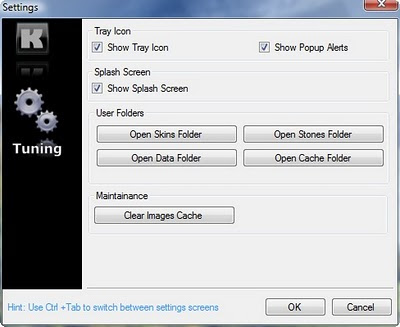
The new release of Krento v.1.2.200.12, freeware desktop organizer  is available for download from http://www.krento.net In this release the look and feel of Krento was improved and skinning engine was almost rewritten from scratch. Now Krento supports not only RocketDock skins, but  ObjectDock skins as well. It means that already now  thousands of skins are available for Krento to choose from. To be able to show all installed skins the skin selection menu become scrollable: You can find nice original skins that can be used with Krento on  http://www.wincustomize.com ,  http://browse.deviantart.com/customization/skins/applaunchers/objectdock  and many other sites. How to install new skins for Krento Download the skin archive to your computer. Extract it from the archive Open Krento skins folder. To do this, select "Options" from Krento menu and switch to "Tuning" page Press "Open Skins Folder" button Copy the subfolder with your skin to Krent...